Requirements:
- Ubuntu OS
Step 1.
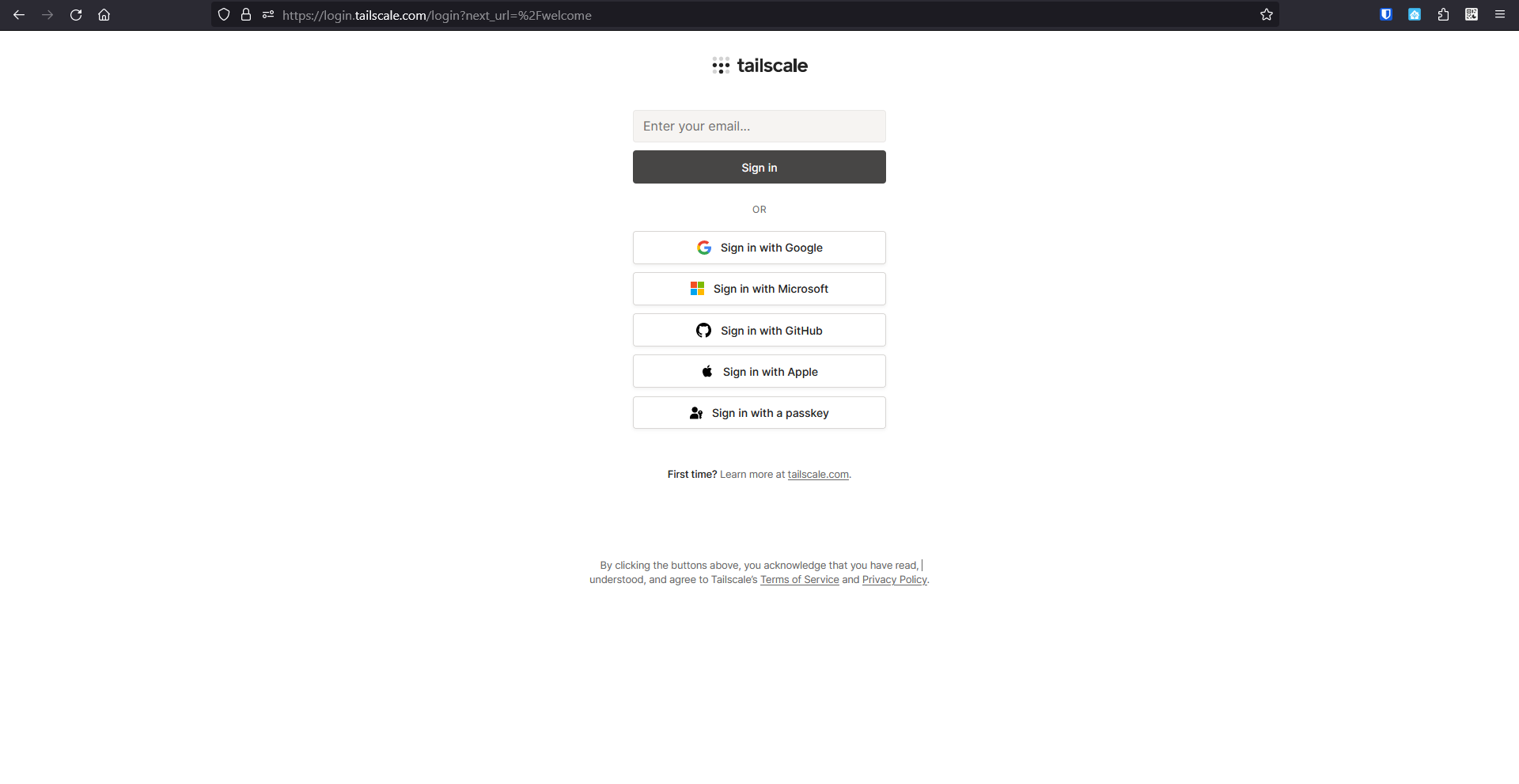
Go to the following link and sign up with a account using the bottom five options.
Step 2.
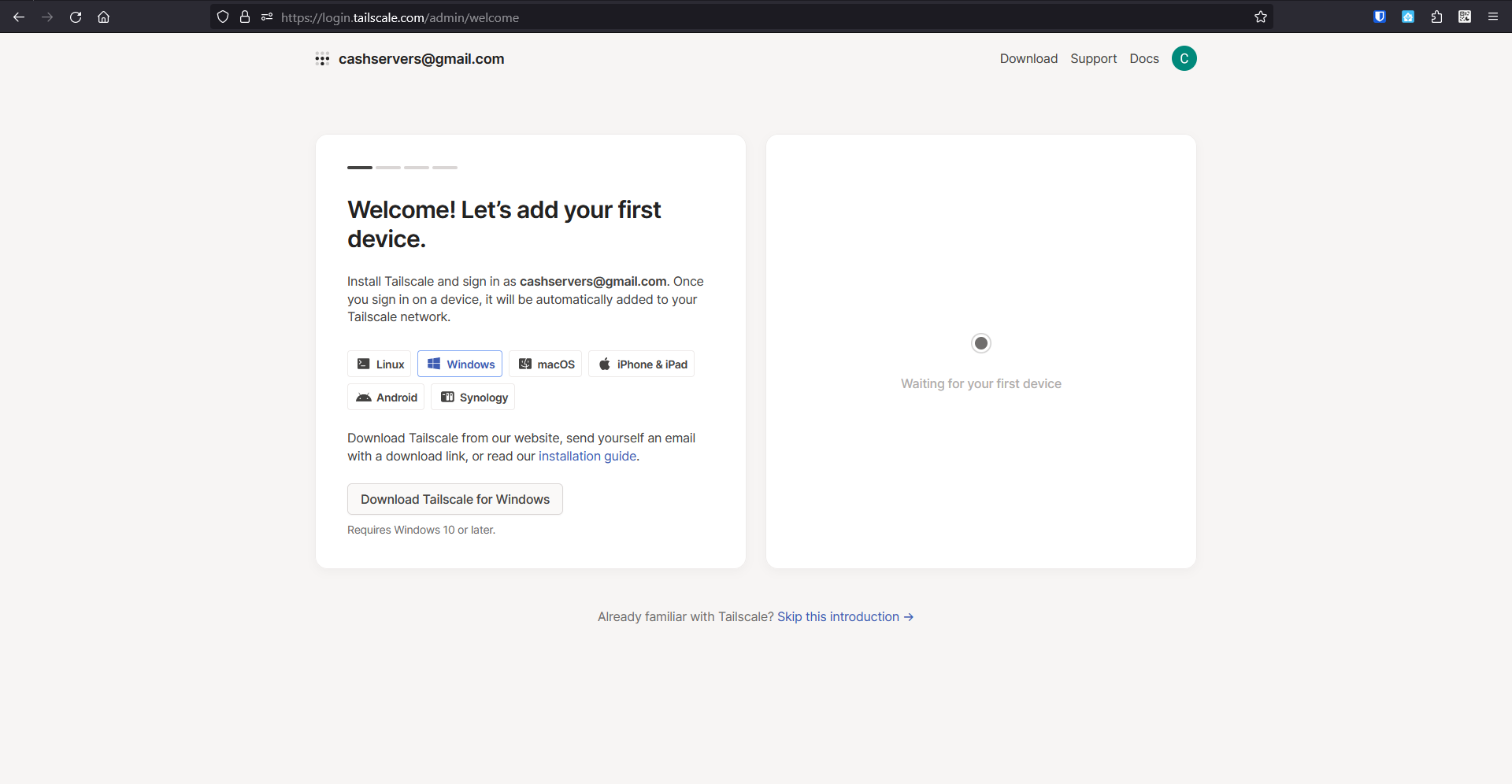
Once signed in, the dashboard will say "Waiting for your first device"
Here is where you can also download your clients for your laptop or phone
Step 3.
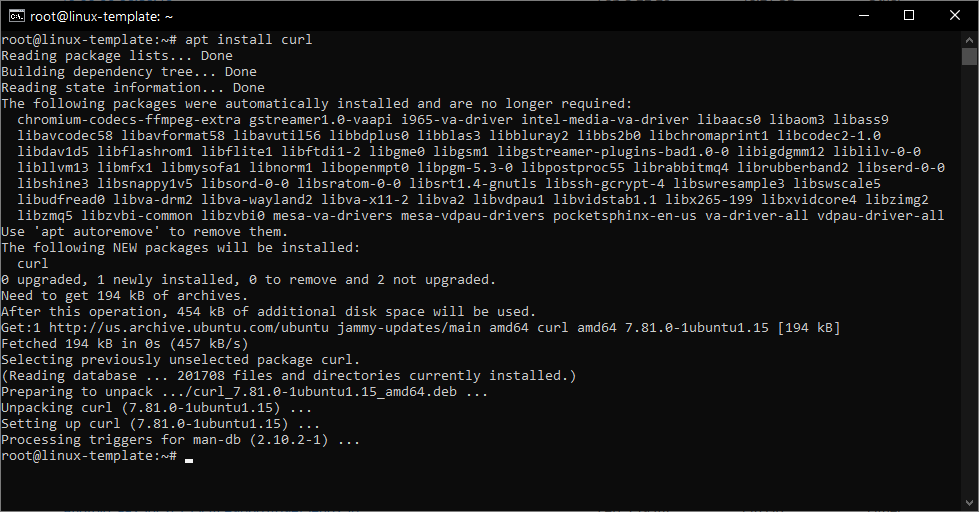
Now that your tailscale account is created we can now start the actual installation. First start by connecting to your server that your gonna use via SSH or local terminal and if you haven't already install "curl" with the following command
Step 4.
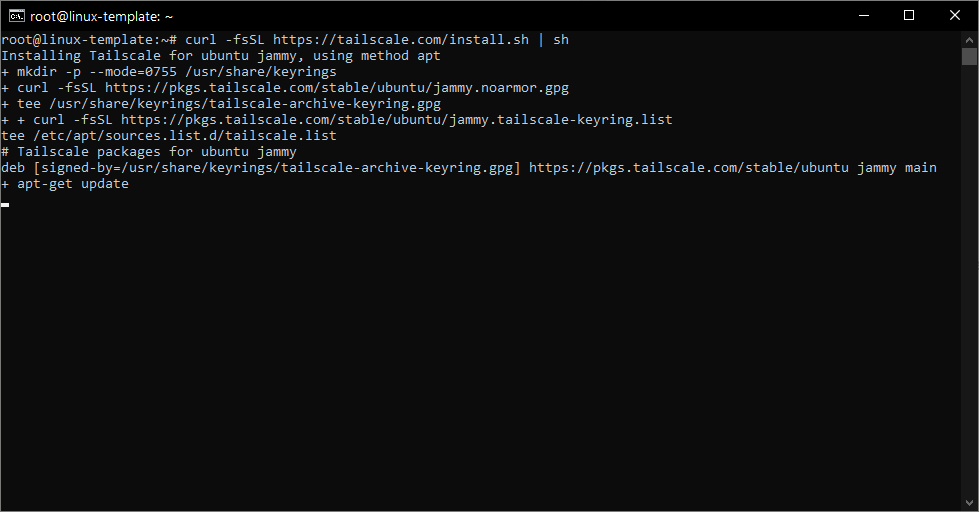
Once Curl is installed, We can now install tailscale with the following command
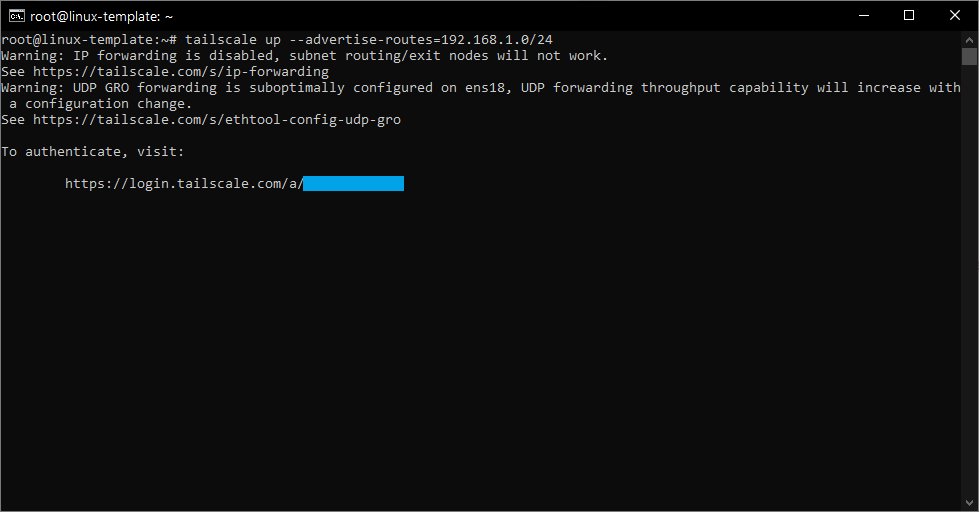
Step 5. Once Tailscale is finished installing, You'll need to activate it with the following command. There is also a "Advertise Route" command at the end which allows you to be able to connect to everything within the network. Once finished, You should see a connection link at the bottom. Copy and paste that URL into your browser of choice
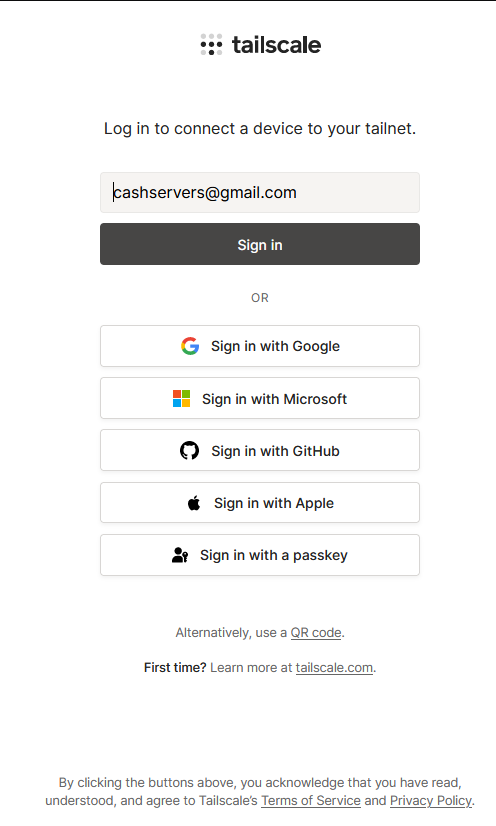
Once you copy that link into your browser, Tailscale will again ask you to login
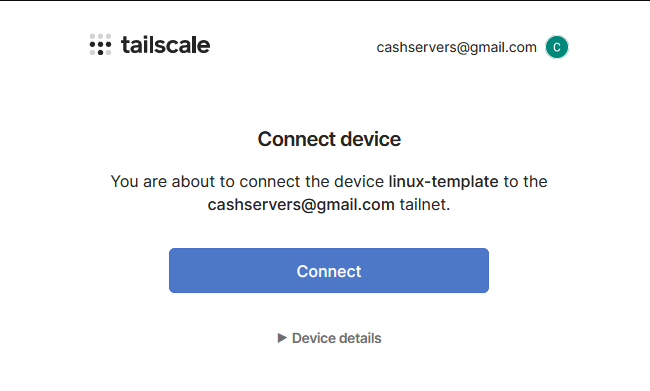
After you login, You'll get a confirmation to connect. Just click the blue "Connect" button
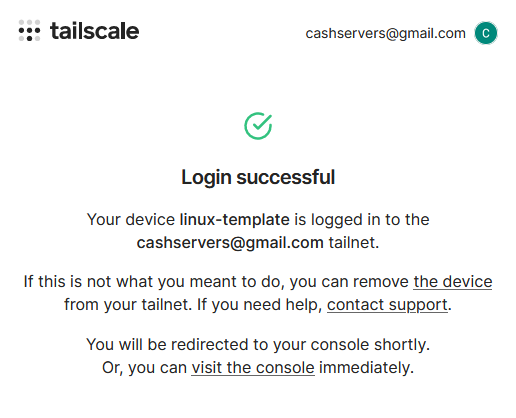
After that you should get a login success notice
Step 6.
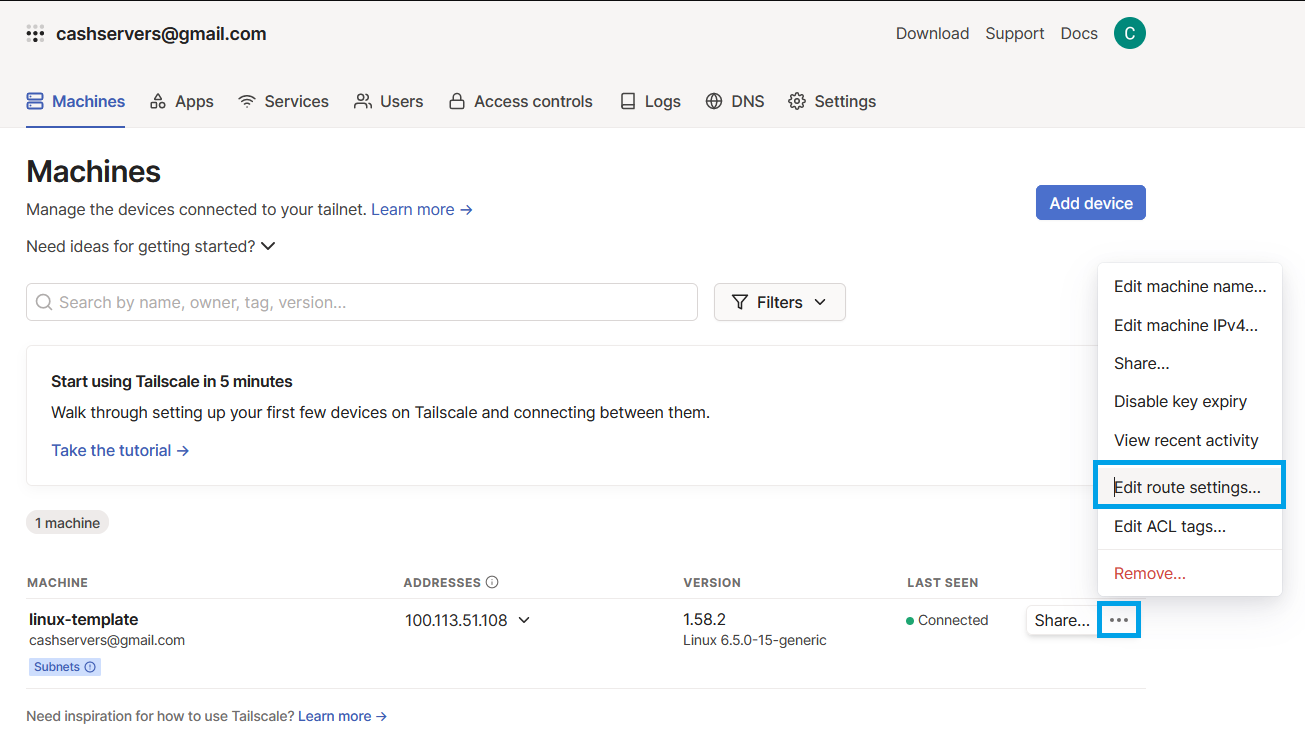
Now that your device is connected there is just a couple more things needing to be buttoned up on. Head to your tailscale dashboard and you will see your vpn server will be listed. Click the 3 buttons to the right and click "Edit Route Settings"
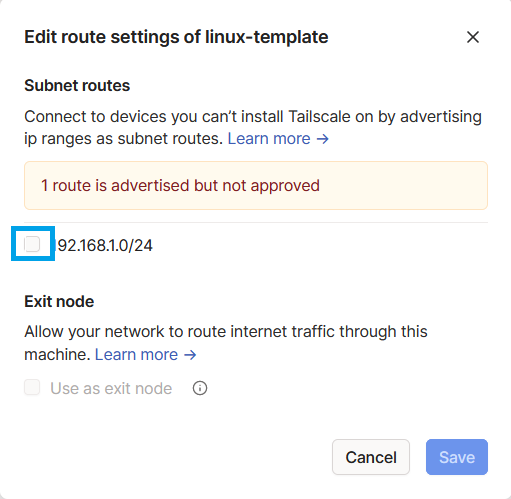
A pop up will appear with a notice saying "1 route is advertised but not approved"
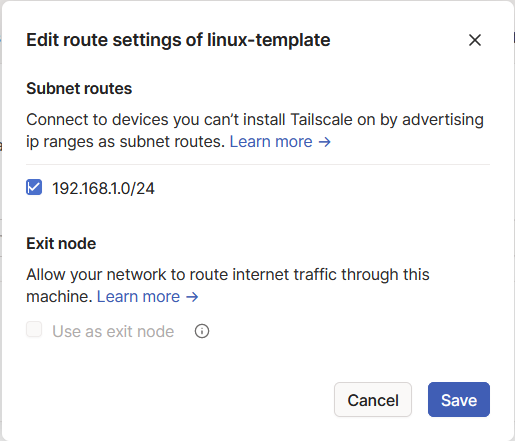
Hit the check mark thats in the blue circle then hit save
Step 7.
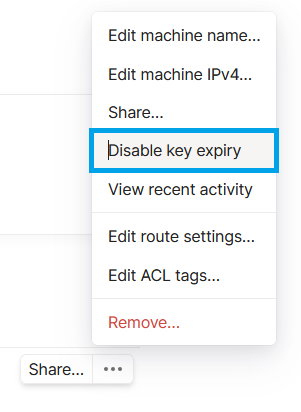
Lastly go back to the dashboard again and click the 3 dots next to your VPN Server and click "Disable Key Expiry"
Now your network is available through your VPN. You should now be able to connect your clients by installing the software on your respective device and login with the same info you used to login the VPN server.